Venkero
Text Notifications & Consent
How Venkero texts a business owner, and exactly how that owner agrees to it.
Current status: Venkero’s text message assistant is built and switched off. Nothing is sent to any phone until delivery is activated with our messaging provider. Everything described below is the behaviour the software is built to have, and the consent screen is the one that ships with it.
What the texts are
Venkero keeps a creative business’s projects, files, approvals and invoices in one place. The text message assistant sends that business’s owner a short message about their own work when something happens — a client emails, a client approves an edit, an estimate is accepted, or a task or project deadline is coming up.
You choose which of these you want, one switch at a time. Every switch starts off:
- New client emails
- Client approvals of edits
- Accepted estimates
- Payments received — switched off by design: a payment text would only ever follow a receipt a payment provider confirmed, and Venkero has no such source today
- Upcoming task deadlines
- Upcoming project deadlines
Messages contain the client and project name and a summary of what happened. The text of a client email may be included. No links and no attachments are ever sent — their presence is mentioned instead.
How consent works
Opting in happens inside the business’s own Venkero account, at Settings → Text message assistant. It takes four deliberate steps, and none of them is pre-ticked:
- The owner types their mobile number, with country code.
- They press Send verification code and receive a code by text.
- They type the code and press Verify this number.
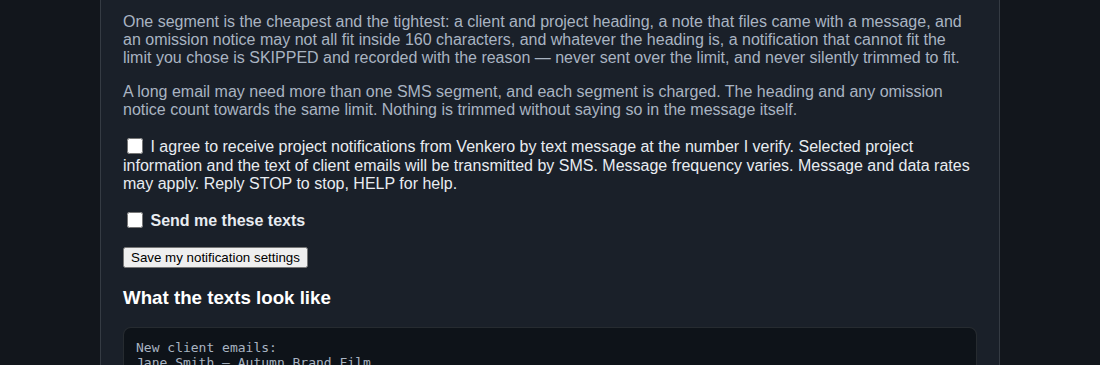
- They tick I agree to receive project notifications from Venkero by text message and Send me these texts, then press Save my notification settings.
The consent checkbox is empty until the owner ticks it. It is never pre-selected, and the server refuses to record an opt-in without it. Turning a category on never sends past events — only what happens next.
What you will receive, and how often
One short message per event you have switched on, sent only to the number you verified, and only to you — each person’s preferences are their own. Message frequency varies with how busy your projects are. Message and data rates may apply.
Quiet hours (default 21:00–07:00 in your timezone) hold client-activity texts until morning. Deadline reminders are never held past their moment.
How to stop
Reply STOP to any message and texts stop immediately. Reply HELP for help, or use Stop all texts to me now in the same settings screen, which stops sending and cancels anything queued. Switching individual categories off stops those without affecting the others.
What we keep
Message text is kept for 30 days, then emptied; the record that something was sent stays. Numbers are used to deliver these messages and are not sold or shared for marketing. See the Privacy Policy for what the software stores overall.
Questions
Write to hello@venkero.com.